
Take your campaign optimization to the next level with our Shopify integration.
This integration allows you to:
- Connect your Shopify account to Insense
- Create individual or bulk orders for hired creators: directly from the chat or from the Product Shipment tab
- Track shipment status in real time, visible in the chat and across the platform
- Download all hired creators' addresses as a spreadsheet in one click: no connection to Shopify needed
Connecting your Shopify Store to Insense
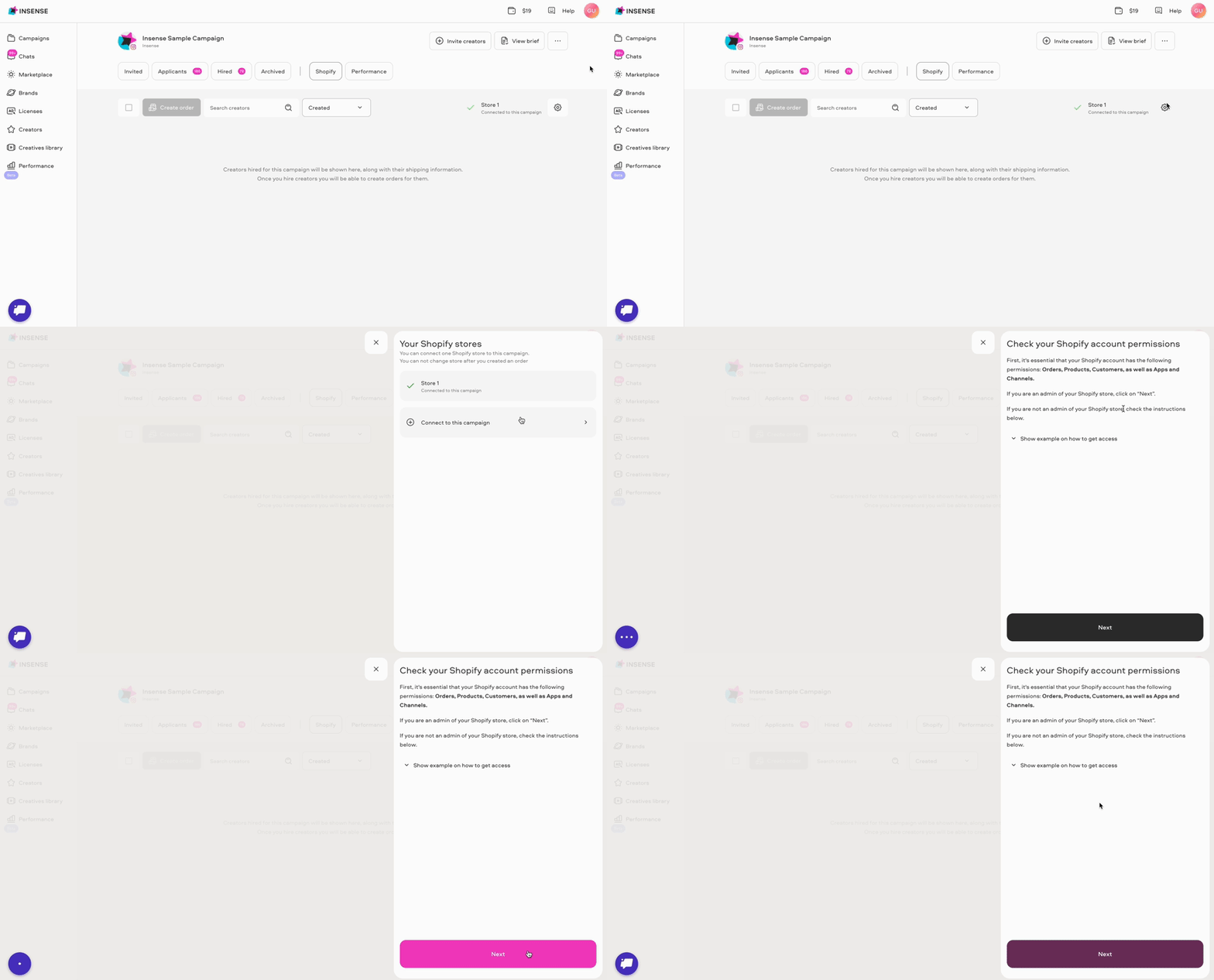
Step 1: Go into any of your active campaigns and click on the "Product Shipment" tab:
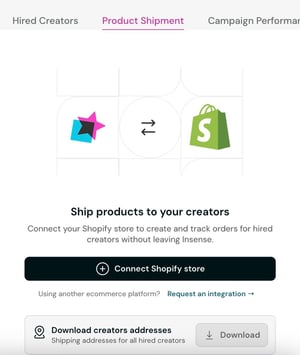
Step 2: Click on "Connect Shopify Store":
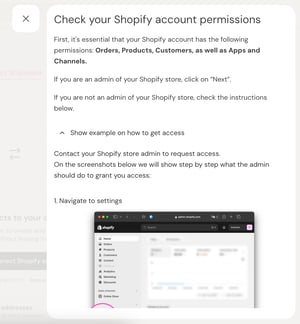
Step 3: Follow the instructions to check permissions and give access to connect your Shopify store to Insense:
Step 4: Install the Insense app on Shopify to finalize the connection process.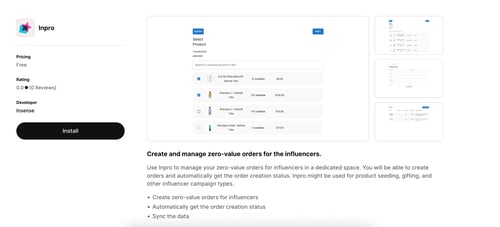
Creating orders: from the chat or in bulk
You can create orders in two ways:
From the chat: Once a creator is hired, a "Send the product to the creator" prompt appears directly in the chat. If no store is connected yet, you'll be guided to connect one first. If a store is already connected, the order is created right from there.
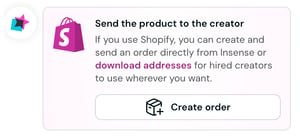
From the Product Shipment tab:
- Go to the Product Shipment tab and select one or more creators with "Not created" status to create an order for.
- Click on "Create order" and select the products you want to add to the order(s):
- Click "Next" and then "Create order" to select the products and complete the process:

💡 To download all hired creators' shipping addresses at once, click "Download creators' addresses" at the top of the Product Shipment tab — this works even without a Shopify store connected, useful if you ship outside of Shopify.
Checking your order status
After an order is created, the shipment status is visible in three places: the Product Shipment tab, the Hired Creators tab, and directly in the chat.
Once the product is delivered, the chat shows a "Product delivered" card with a shortcut to update the content creation deadline.
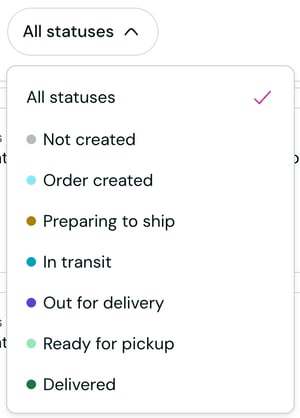
💡 There are now eight shipment statuses:
- Not created — No order has been placed yet
- Order created — The order has been successfully created
- Preparing to ship — The order is being prepared
- In transit — The order is on its way
- Out for delivery — The order is arriving today
- Delivered — The product has been delivered to the creator
- Delivery issue — There was a problem with the delivery
- Canceled — The order was canceled
Connecting Multiple Stores
It's possible to have multiple Shopify Stores connected to your Insense account, however, only one can be selected per campaign.
Simply follow the same process as before to add a new Shopify store to a new campaign.
💡Important: It's only possible to connect a new store to a campaign if no orders have been generated yet.
Sending multiple products to one creator
If you need to send a creator more than one product, select each product individually and add them all to the same order.
Bundle products, meaning a single product on your store that is made up of several other products, are not currently supported or recommended for order creation. An order built around a bundle will not go through and will show as cancelled, even when all of the products are in stock.
To send multiple products to the same creator:
- Click on "Create order"
- Select each individual product you want to include
- Click on "next" and then "create order"
The creator receives all of the products in the same shipment.
💡 Important: Please note that it's only possible to connect a new store in a campaign, if no orders were generated yet.
Related Articles
How to choose the right creators for your campaign
We're here to help, for any further assistance, click the chat bubble in the bottom corner and send us a message, or feel free to reach out to us at hello@insense.pro
We're just a message away!